


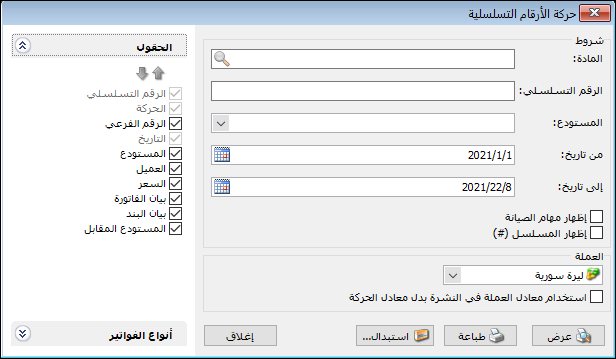
This report provides detailed transactions for a particular serial number and item. For example, when a customer returns a serialized item, request the report using its item and serial number to see the purchase and sales invoices and verify whether it was sold by your store. The report conditions window contains these options:
.
Conditions: #
- Item: Select the item associated with the serial number. This is particularly important when two different items share the same serial number.
- Serial Number: Enter the serial number whose transactions you want to review.
- Warehouse: Select a warehouse to display only transactions for the serial number in that warehouse.
- From Date / To Date: Specify a date range to display serial number transactions within that period.
- Show Maintenance Tasks: Enable this option to display maintenance tasks with a number matching the entered serial number.
- Show Sequence Number: Enable this option to display sequential row numbers in the report.
- Currency and Exchange Rate: Select the report currency and its exchange rate relative to the base currency.
Fields: #
Choose fields for the final report and arrange them by selecting a field and moving it up or down with the arrows above the list.
Invoice Types: #
Select the invoice types whose serial number transactions should be displayed.
Show: #
Display the report using the preceding conditions.
Print: #
Click this button to print the final report.
Close: #
Close the report conditions window.
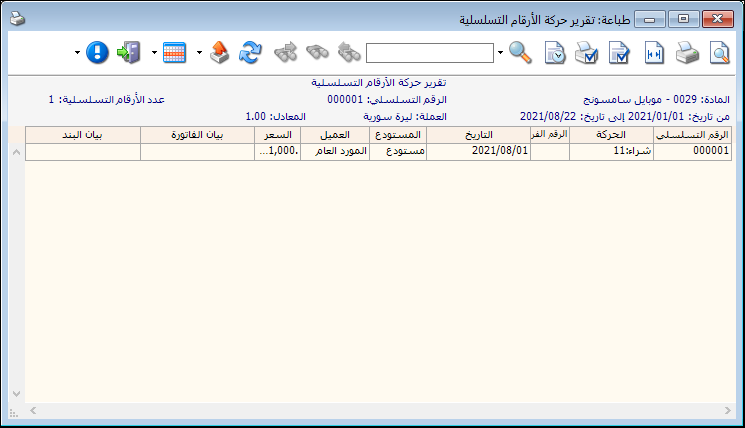
The report appears as follows:
.
Examples of Information Available from the Serial Number Transaction Report:
- Transactions for serial number 12345678910.
- Maintenance tasks with serial number or odometer reference 7854.
- Transactions for a serial number containing 254411, provided that fragment does not match another serial number. Enter *254411* in Serial Number.
- Transactions for serial number 48845125 during the first month.
Transactions for serial number 654877 in the company main warehouse.
.


