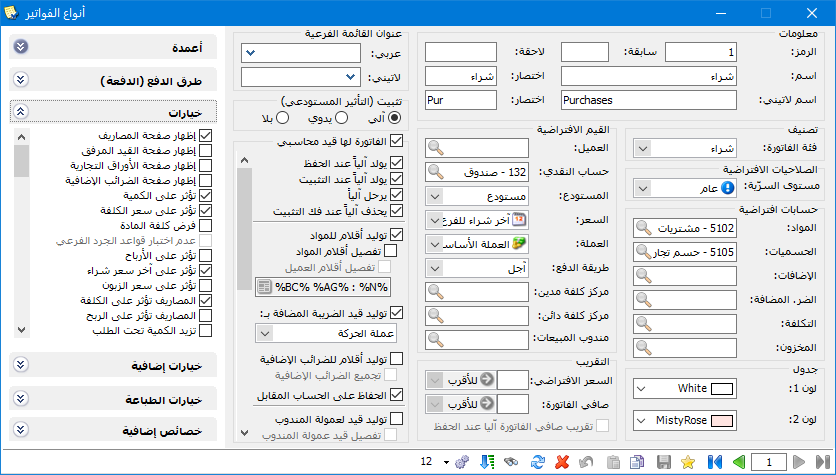
Open Definitions and Invoice Types to configure invoice types in the database using the following window.
.
.
Invoice Window #
The window contains the following fields and options.
Code : The invoice type code. If not entered manually, it is assigned sequentially.
Name : Enter the invoice’s Arabic name.
.
.
Latin Name : Enter its English name.
Abbreviation : Enter abbreviated names used in reports.
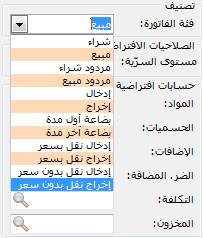
Invoice Category : The following options are available.
The category controls stock direction and generated entries. For example, naming a type Sales Invoice while selecting Purchase would receive items instead of issuing them and reverse its accounting effect. Check the category carefully before changing it.
- Confidentiality Level : Choose a confidentiality level for user permissions: Public, Private, Confidential or Highly Confidential.
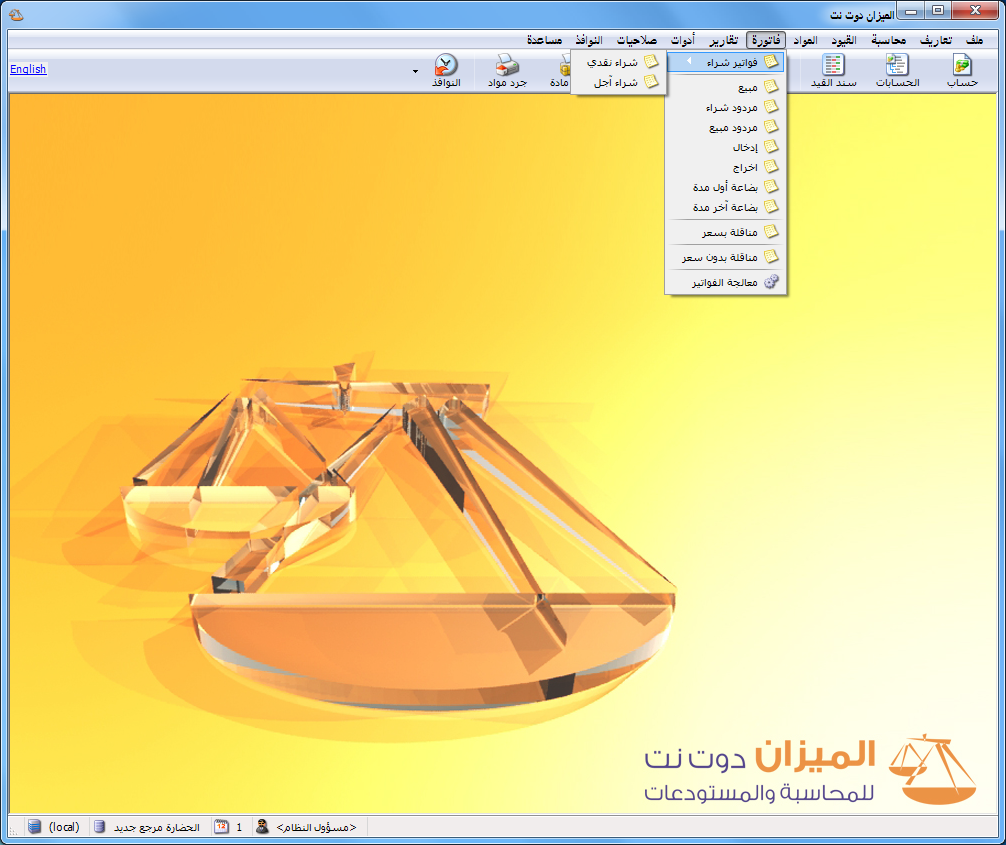
- Submenu Title: Place the type in a submenu under Invoices. For example, give Cash Purchase a submenu title of Purchase Invoices, as illustrated below.
.
.
Default Accounts: #
- Items: Select the item account used in the generated Trading entry, such as Purchases, Sales, Purchase Returns or Sales Returns.
This section contains the following fields.
Note:
These accounts apply to periodic inventory. Under perpetual inventory, use Inventory rather than Purchases or Purchase Returns.
- Discounts: Select the discount account, such as Discount Allowed or Discount Received. If blank, discounts are posted to the Item Account above.
- Additions: Select the addition account. If blank, additions are posted to Item Account.
- Added Tax: Select the VAT account defined in the chart of accounts.
- Cost / Inventory: These are mainly used for sales and sales returns under perpetual inventory. Set Cost to Cost of Goods Sold and Inventory to the stock account. A sales invoice then generates the following entries.
| Debit | Credit | Account |
| Sales Entries | ||
| Entry at Selling Price | ||
| ××× | Cash or Customer | |
| ××× | Sales | |
| Entry at Cost | ||
| ××× | Cost of Goods Sold | |
| ××× | Inventory Account | |
| Sales Return Entries | ||
| Entry at Sales Return Price | ||
| ××× | Sales Returns | |
| ××× | Cash or Customer | |
| Entry at Cost | ||
| ××× | Inventory Account | |
| ××× | Cost of Goods Sold |
- Color 1 / Color 2 : Set alternating invoice row colors.
Default Values: #
These include:
Customer: For On Account invoices, this is the counterpart to Item Account: usually a customer for sales or a supplier for purchases. It is inserted automatically in new invoices. Leave it blank when the company has multiple customers or suppliers to avoid assigning one by default.
Cash Account: Select Cash or Bank as the counterpart to Item Account when Payment Method is Cash.
Warehouse: Set the default warehouse for invoice operations.
Price: #
Select the default value inserted into Unit Price. Available options include:
None : Do not insert a unit price automatically.
Item Card Prices: #
Retail : Retrieve Retail from the item card’s Prices tab.
Special Retail : Retrieve Special Retail from the item card.

Semi-Wholesale : Retrieve it from the item card.
Wholesale : Retrieve it from the item card.
Distributor: Retrieve it from the item card.
Export : Retrieve it from the item card.
Statistical Prices: #
Branch Cost : Retrieve the unit cost for the branch.
Company Cost : Retrieve the unit cost for the whole company.
Latest Branch Purchase : Retrieve the price from the latest branch purchase invoice containing the item.
Latest Actual Branch Purchase : Retrieve the latest branch purchase price after applying that invoice’s discounts and additions.
Latest Company Purchase : Retrieve the price from the latest company purchase invoice containing the item.
Latest Actual Company Purchase : Retrieve the latest company purchase price after its discounts and additions.
(Statistical Prices — Highest: #
Highest Company Purchase Price : Retrieve the highest purchase price across the company.
Highest Actual Company Purchase Price : Retrieve the highest company purchase price after its discounts and additions.
Highest Branch Purchase Price : Retrieve the highest purchase price within the branch.
Highest Actual Branch Purchase Price : Retrieve the highest branch purchase price after its discounts and additions.
Lowest Company Purchase Price : Retrieve the lowest purchase price across the company.
Statistical Prices — Lowest: #
Lowest Actual Company Purchase Price : Retrieve the lowest company purchase price after its discounts and additions.
Lowest Branch Purchase Price : Retrieve the highest purchase price within the branch.
Lowest Actual Branch Purchase Price : Retrieve the lowest branch purchase price after its discounts and additions.
Customer Prices: #
Latest Sale to Customer : Retrieve the item price from its latest invoice to this customer.
Latest Actual Sale to Customer : Retrieve that price after the invoice’s discounts and additions.
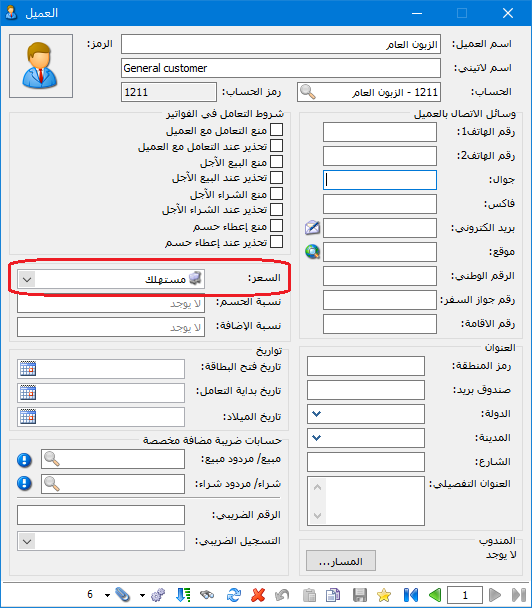
Customer Card Price : Use the pricing method specified in the customer card, as illustrated below.
.
.
Currency: #
Set the default invoice valuation currency.
Debit Cost Center / Credit Cost Center: #
Set default centers to which invoice item values are assigned on the corresponding sides.
Sales Representative : Set the representative inserted automatically in new invoices.
Rounding: #
Default Price: #
Round automatically inserted unit prices. For a rounding increment of 10, three options are available:
11. Up: Round the unit price up to the next multiple of ten.
2. Down: Round it down to the previous multiple of ten.
3. Nearest: Round it to the nearest multiple of ten.
Note:
These defaults are inserted automatically but remain editable. For example, a default Retail price of SYP 200 can be changed to SYP 250 in an invoice.
Invoice Net Total: #
Round Net Total. With an increment of 10, three options are available:
1. Up: Round the net amount up to the next multiple of ten.
2. Down: Round it down to the previous multiple of ten.
3. Nearest: Round it to the nearest multiple of ten.
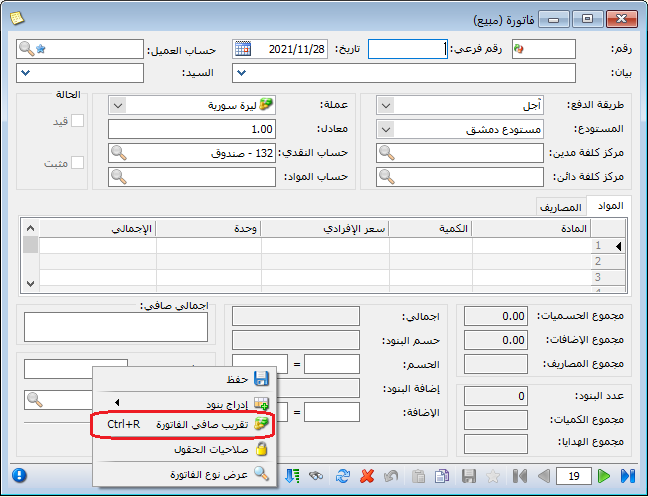
Round manually through Operations and Round Invoice Net Total, as illustrated below.
.
.
Or enable Round Invoice Net Total Automatically on Save to apply the configured increment when saving.
- Finalize: Choose one of three finalization options:
Automatic: Finalize the invoice and apply its quantity effect when it is saved.
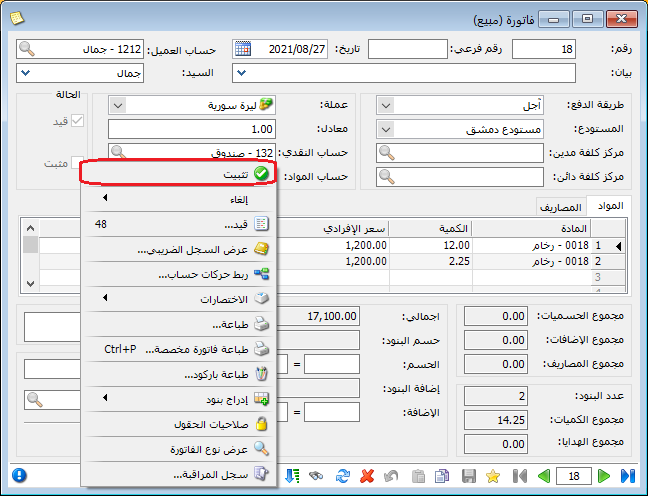
Manual : Save, then select Operations and Finalize, as shown below.
.
.
None: Do not affect quantities. The invoice cannot be finalized automatically or manually.
Invoice Has an Accounting Entry: #
Configure generated journal entries using these options:
Invoice Has an Entry: #
Disable to prevent entry generation; enable if an accounting entry is required.
Generate Automatically on Save : Generate the invoice entry when saving.
Generate Automatically on Finalization : Generate the entry when a manually finalized invoice is finalized.
Post Automatically : Post the generated entry automatically. Otherwise, post it manually through Operations in the generated Entry tab.
Delete Automatically When Finalization Is Undone : Delete the generated entry when finalization is undone. Otherwise, retain the entry.
Generate Item Journal Lines: #
Enable to generate entries for items on the Items tab. If disabled, no item entry is generated.
Two additional options are available:
- Detailed Item Journal Lines: Generate separate lines for each invoice item. Choose description components such as invoice type and number, customer name, header description, item name, line notes, expiry date, batch, production date, dimensions, area, volume, size, color, class and factory code.
- Detailed Customer Journal Lines : Generate a separate journal line for each customer movement.
Generate Added-Tax Entry: #
Generate a VAT journal entry when enabled; otherwise, no VAT entry is produced.
- Transaction Currency: Generate the VAT entry in the invoice currency.
- Base Currency: Generate the VAT entry in the database’s base currency.
Generate Additional-Tax Entry: #
Generate an entry for additional taxes configured in the program, such as consumption, reconstruction or local administration taxes. If disabled, no additional-tax entry is generated.
Preserve Counterpart Account: #
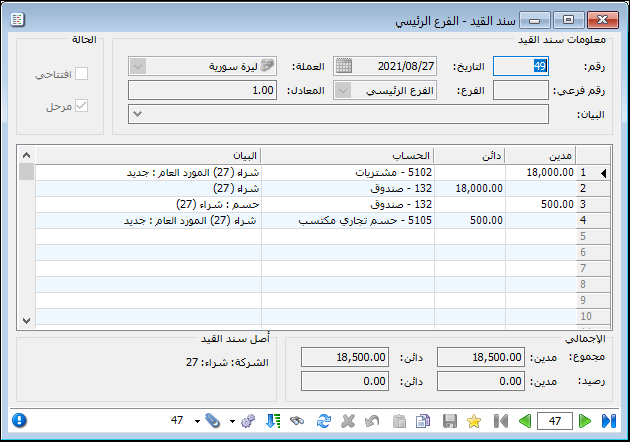
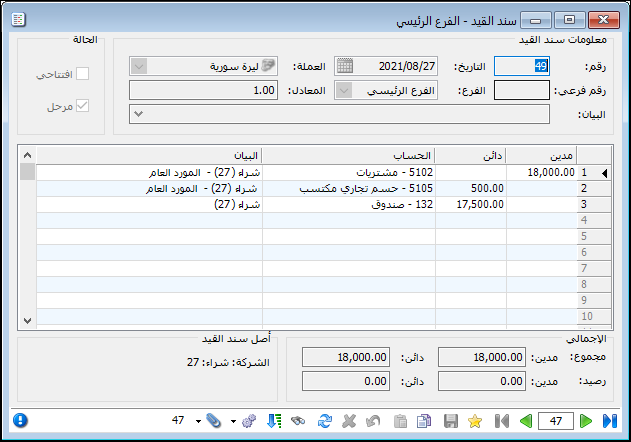
If disabled, repeated accounts are netted between debit and credit and displayed once. For example, a cash purchase of SYP 18,000 with a SYP 500 discount produces the following entry when preservation is enabled.
.
.
Cash appears twice in that entry. With preservation disabled, Cash appears only once, as shown below.
.
.
Generate Representative Commission Entry: #
Generate commission for the representative selected in the invoice using their configured rules and percentage.
Generate Expense Journal Lines: #
Generate an entry for the Expenses tab. If disabled, that tab produces no entry.
Generate Attached Entry Lines: #
Generate an entry using Attached Entry data. If disabled, no attached entry is generated.
- Free Unit Price: Select the valuation price for free units from item-card prices or statistical prices.
- Reprice Free Units When Re-finalizing: When invoices are re-finalized, update free-unit valuation automatically using Free Unit Price.
- Generate Free Unit Entry: Generate accounting entries for free units. If disabled, no such entry is produced.
- Free Unit Account: Select the account to which free-unit value is charged.
- Free Unit Counterpart: Select the counterpart account for the free-unit entry.
Cost Center Posting: #
Three options are available:
- None: Do not post to a cost center even if one is selected in the invoice.
- Post to Item Account: Assign the invoice cost center to Item Account in the generated entry.
- Post to Customer Account: Assign the invoice cost center to Customer Account in the generated entry.
Entry Subnumber: #
Available options include:
- None: Do not assign a subnumber automatically; enter one manually or leave blank.
- Independent: Use a numbering sequence independent of other invoice types.
- Follow Series: Use a defined shared series, which can include multiple invoice types. See Defining Company Branches and Warehouses.
Columns: #
Select which columns appear and arrange their order using the two blue arrows at the top of the columns list.
Important Note: Enable Warehouse to show it on each item line, allowing one invoice to receive into or issue from multiple warehouses. All warehouses must belong to the same branch; an invoice cannot span multiple branches.
- Multiple-Currency Payments in Invoices — Payment Methods:
Select the payment methods available in this invoice.
Options: #
The Options tab includes:
- Show Expenses Tab : Display a tab for expenses directly related to the invoice.
- Show Attached Entry Tab : Display a tab for an optional related journal entry apart from the invoice expenses.
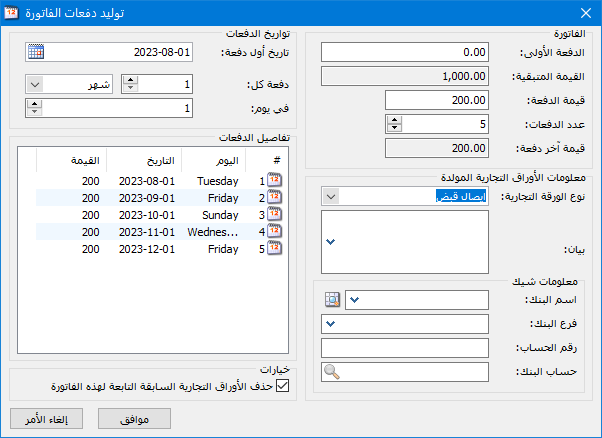
- Show Commercial Papers Tab : Record invoice payments or receipts using commercial papers. Click Distribute Remaining Invoice Value to divide the outstanding balance into installments, as illustrated below.
.

.
- Show Additional Taxes Tab : Display a tab alongside Items and Expenses to
- show configured tax types and their amounts, when applicable.
- Affects Quantity: Change warehouse quantities when invoice items are received or issued. Disable for records such as orders or quotations that must not change stock.
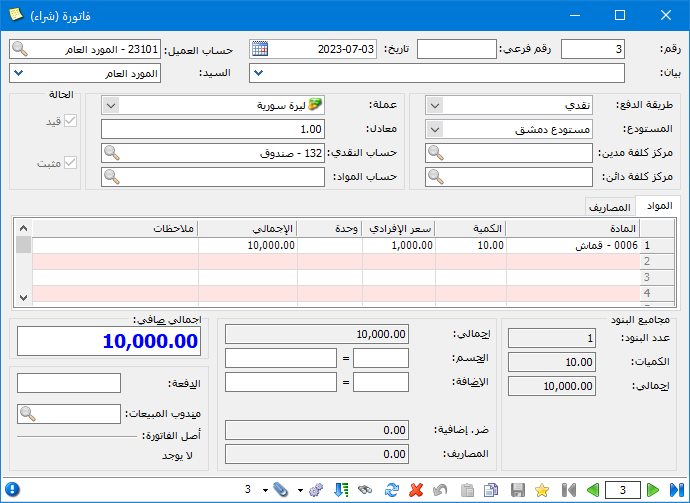
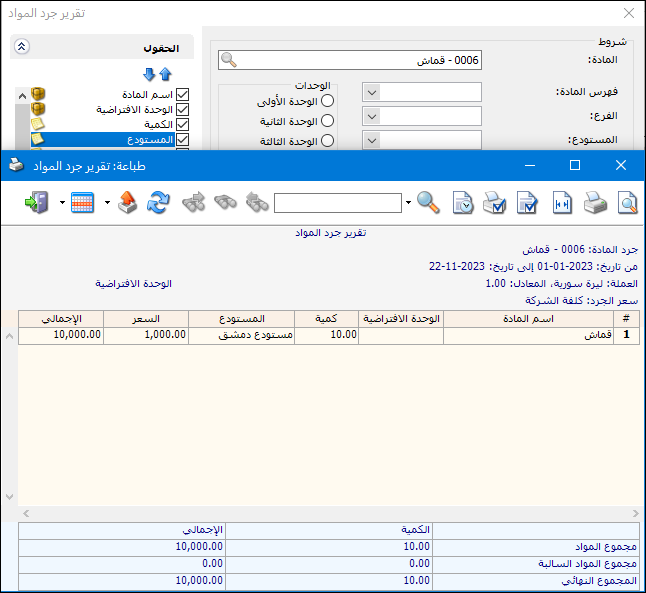
- Affects Cost Price : Include invoice values in unit cost calculations, especially purchases with changing prices. For example, purchasing ten units of Fabric at SYP 1,000 creates the invoice and inventory shown below.
.
.
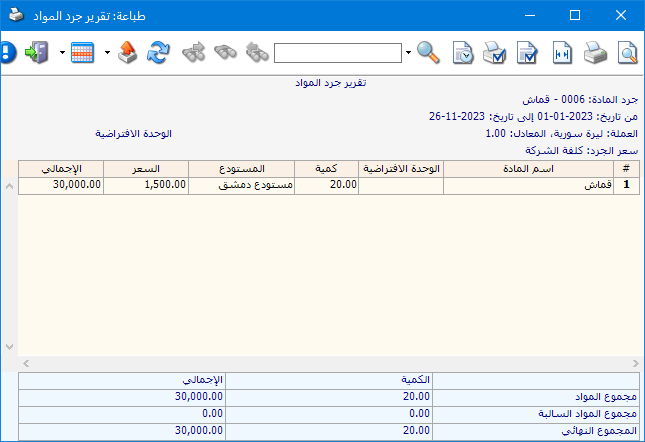
Purchasing another ten at SYP 2,000 with Affects Cost Price enabled gives an average cost of [(10 × 1,000) + (10 × 2,000)] ÷ 20 = 1,500.
Stock value becomes 20 × 1,500 = 30,000, the total of both purchases.
The following inventory report illustrates this.
.
.
Note:
For purchase returns, enable the option if returned values should change the remaining inventory cost. For example, returning a high-priced purchase can reduce the cost of stock left in the warehouse.
- Override Item Cost: Replace previous item costs with a specified cost. The Cost Override invoice is explained later.
- Affects Profit: Enable mainly for sales and sales returns, which normally leave unit cost unchanged but create a difference between selling price and cost. Enable for profit-generating invoice types to include them in Invoice Profits reports.
- Affects Latest Purchase Price: Enable for purchase invoices so Latest Branch Purchase or Latest Company Purchase retrieves the price from the most recent relevant purchase.
Note:
This can also be enabled for Opening Inventory invoices so last year’s opening cost is available as the latest purchase price before any current-year purchase.
- Affects Customer Price: Enable for sales invoices so Latest Sale to Customer retrieves the price from the most recent invoice for that customer and item.
- Expenses Affect Cost: Allocate purchase invoice expenses to received units, by default according to their values..
Example: Suppose the first fabric purchase is 10 m × SYP 1,000 = 10,000.
The second is 10 m × SYP 2,000 = 20,000, with SYP 500 in expenses. Average fabric cost becomes [(10 × 1,000) + (10 × 2,000) + 500] ÷ 20 = SYP 1,525 per meter.
The following inventory report illustrates the result.
.

.
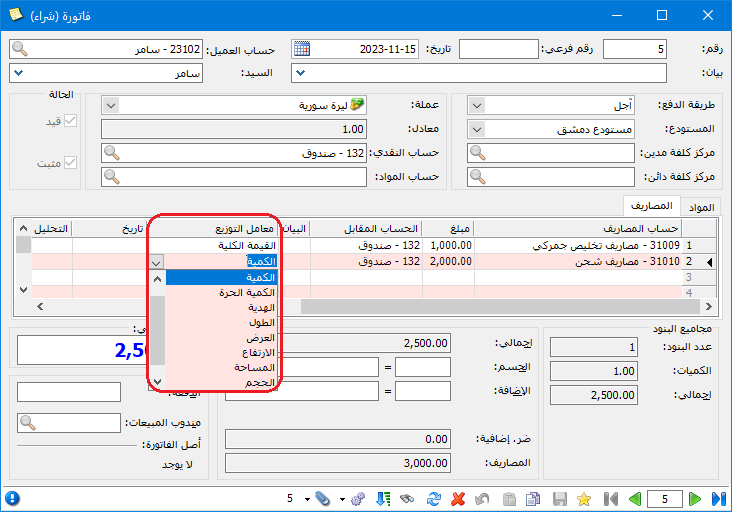
Important Note:
For several items, expenses are normally allocated by item value. Other bases, such as quantity, length or width, can be selected using Allocation Factor, as illustrated below.
.
.
- Expenses Affect Profit: Deduct invoice expenses from gross profit when calculating net profit in
- the Invoice Profits report.
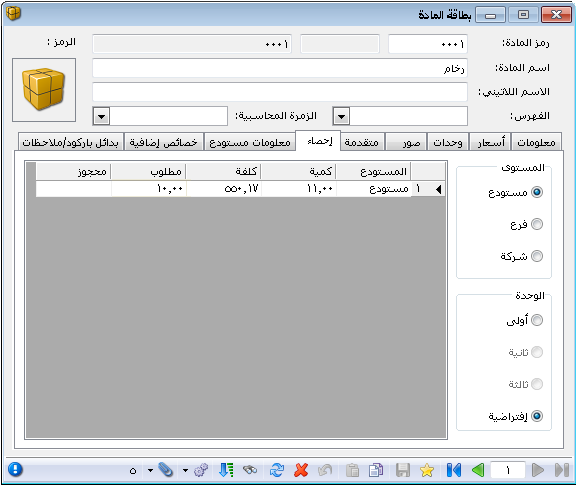
- Increase Requested Quantity: Increase the quantity shown as Requested in the item card’s Statistics tab.
Example: For example, an order for ten units of Marble with this option enabled changes its Statistics as illustrated below.
.
.
- Decrease Requested Quantity: Reduce Requested Quantity in the item card’s Statistics tab.
- Increase Reserved Quantity: Increase Reserved Quantity in the item card’s Statistics tab.
- Decrease Reserved Quantity: Reduce Reserved Quantity in the item card’s Statistics tab.
- Perpetual Inventory: For sales and sales returns, enable this and specify Cost and Inventory accounts. The invoice generates an entry at selling price and another at cost, as illustrated below.
| Debit | Credit | Account | |
| Sales Entries | |||
| At Selling Price | |||
| ××× | Cash or Customer | ||
| ××× | Sales | ||
| At Cost | |||
| ××× | Cost of Goods Sold | ||
| ××× | Inventory | ||
| Sales Return Entries | |||
| At Return Selling Price | |||
| ××× | Sales Returns | ||
| ××× | Cash or Customer | ||
| At Cost | |||
| ××× | Inventory | ||
| ××× | Cost of Goods Sold | ||
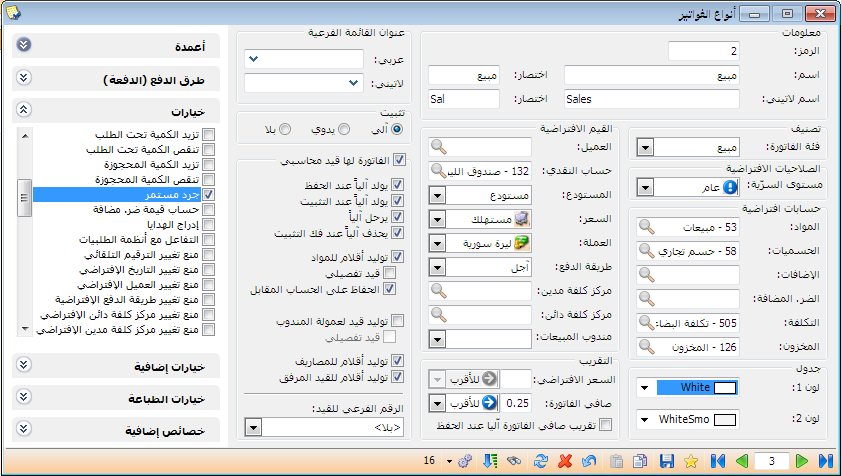
Change invoice settings as illustrated below.
.
- Calculate Added Tax — VAT: Enable to calculate VAT on the invoice. See Using Value Added Tax for details.
- Calculate Included Tax — TTC: Enable to calculate the tax included in invoice prices. See Using Value Added Tax for details.
- Added Tax — Ignore Invoice Discount and Addition: Exclude invoice-level discounts and additions from the tax calculation.
- Insert Free Units: Insert free units according to the item card’s defined ratio, such as one free for every two units.
.
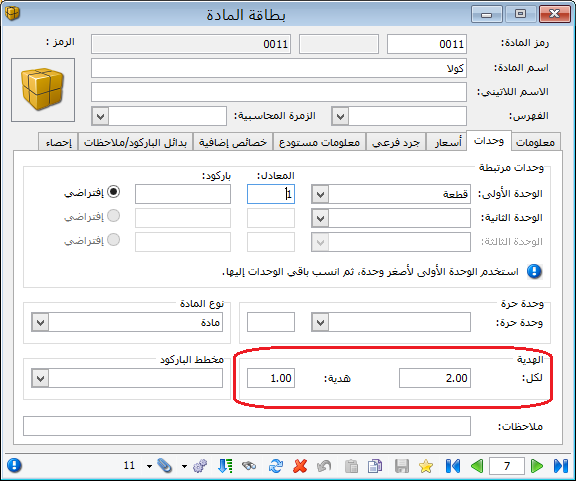
.
Enable Free Units under Columns, as shown below.
.
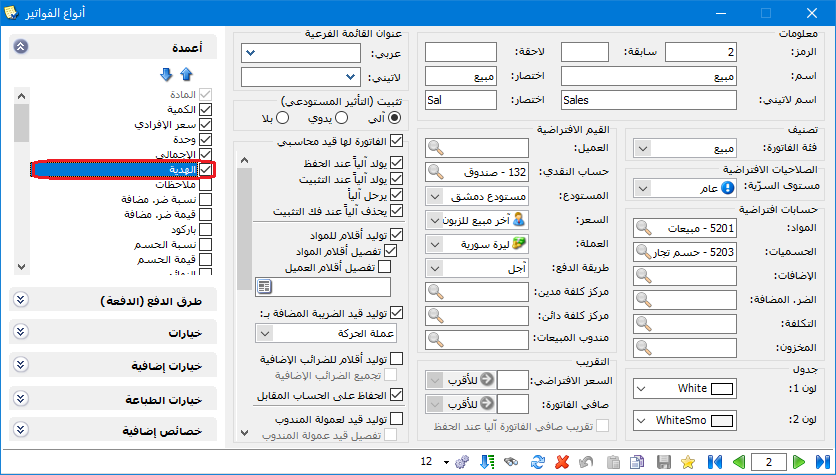
.
Insert the item in a sales invoice to obtain one free unit for every two, as illustrated below.
.
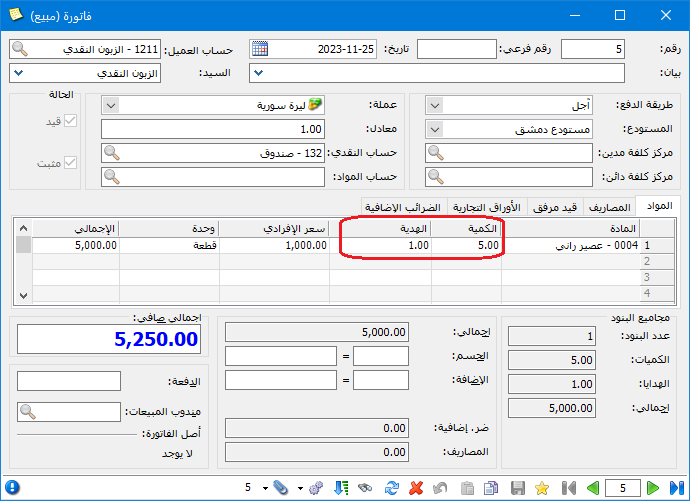
.
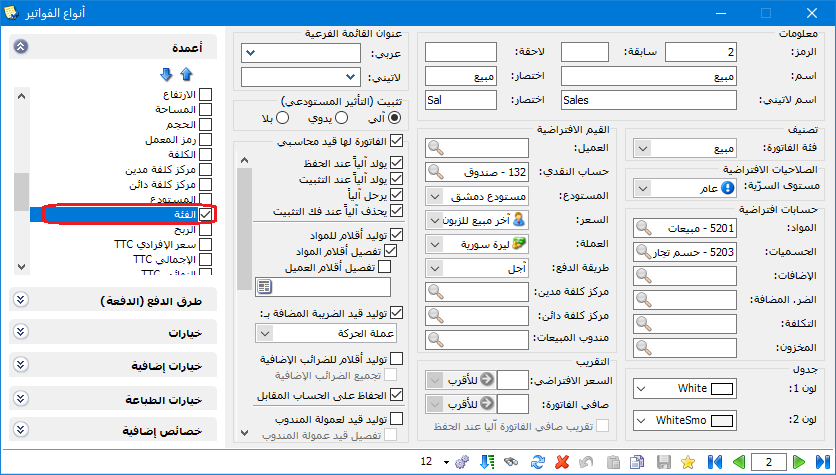
- Insert Item Class Automatically: Retrieve Class from the item card.
As illustrated below.
.
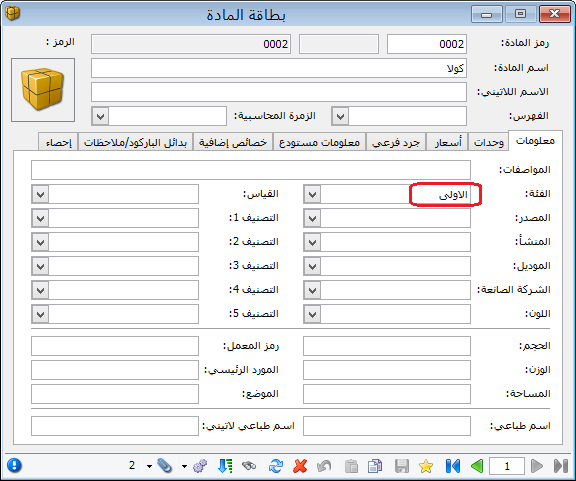
.
Enable Class under Columns, as shown below.
.
.
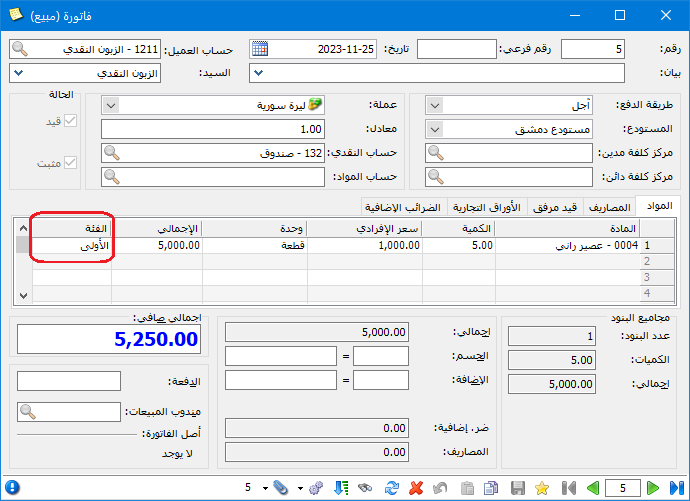
The class is then inserted with the item in the sales invoice.
.
.
- Insert Factory Code Automatically: Retrieve Factory Code from the item card.
Enable Factory Code under Columns.
The process follows the preceding Item Class example.
- Insert Volume Automatically: Retrieve Volume from the item card.
Enable Volume under Columns.
The process follows the preceding Item Class example.
- Insert Area Automatically: Retrieve Area from the item card.
Enable Area under Columns.
The process follows the preceding Item Class example.
Interact with Order Systems: After entering a customer, display a window linking the invoice to an order system. This requires the Orders module to be enabled.
- Prevent Changes to Automatic Numbering: Make the automatically assigned invoice number read-only.
- Prevent Changes to the Default Date: Make the automatically assigned invoice date read-only.
- Prevent Changes to the Default Customer: Do not allow changing the default customer in the invoice.
- Prevent Changes to Customer: Do not allow changing an existing customer. If no default customer exists, permit the initial selection.
- Allow Customer Change If Discount and Addition Rates Match: Allow switching to another customer only if both customers have the same discount and addition rates.
- Prevent Changes to the Default Payment Method: Keep the default payment method fixed.
- Prevent Changes to the Default Credit Cost Center: Keep the default credit cost center fixed.
- Prevent Changes to the Default Debit Cost Center: Keep the default debit cost center fixed.
- Prevent Changes to the Default Branch: Keep the default branch fixed.
- Prevent Changes to the Default Warehouse: Keep the default warehouse fixed.
- Prevent Changes to the Default Cash Account: Keep the default cash account fixed.
- Prevent Changes to the Default Item Account: Keep the default item account fixed.
- Prevent Changes to the Default Sales Representative: Keep the invoice representative fixed.
- Set Default Quantity to One: Insert quantity 1 when an item is added.
- Generate Serial Numbers Automatically: Generate serial numbers for invoice units if enabled in the item card. For example, ten purchased units automatically receive ten serial numbers.
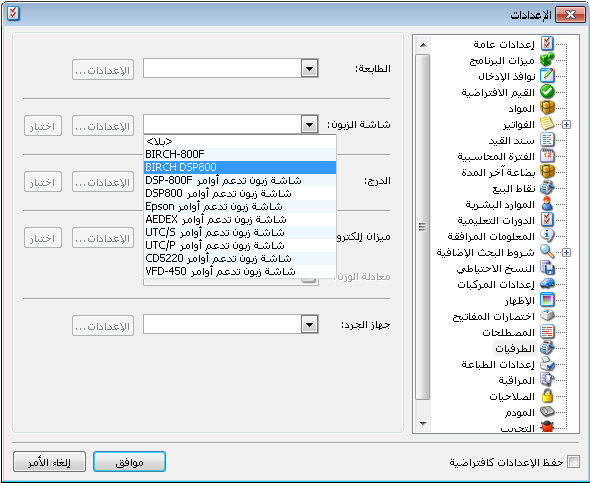
- Interact with Customer Display: Show invoice quantities, prices and other details on an attached customer display.
Note:
Also configure the display type in Tools, Settings and Peripherals, as shown below.
.
.
- Open Cash Drawer Automatically on Save: Open the configured drawer when saving, provided it is connected and defined under Peripherals.
- Reprice When Re-finalizing Invoices: Enable if earlier invoice prices should be recalculated. Consider the following example.
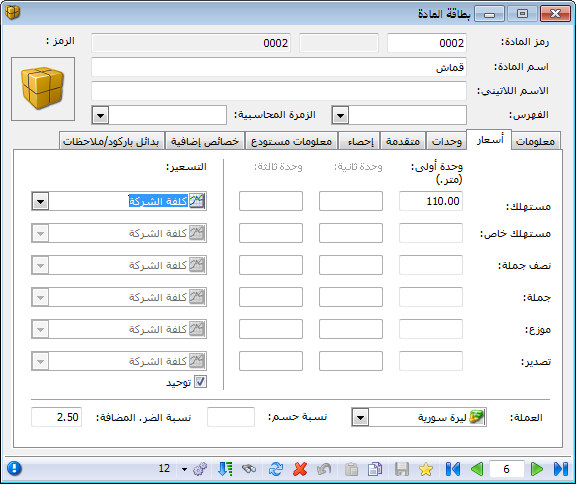
To price Fabric at ten percent above cost, set Retail in its Prices tab to 110% of cost, as shown below.
.
.
Buying ten meters at SYP 200 gives a unit cost of 200. Selling five meters with Retail as the default price uses SYP 220 per meter.
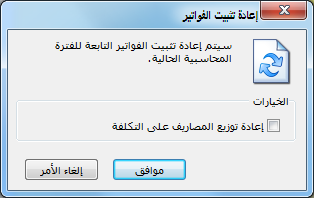
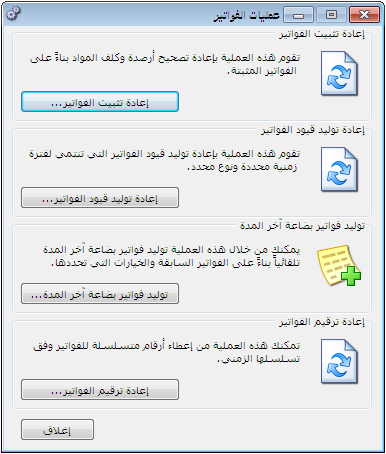
If the purchase price is later corrected to SYP 300, the old sales price of 220 is below cost. Repricing can update it to 330. Enable Reprice Invoice Items, correct the purchase and run Items, Invoice Operations and Re-finalize Invoices.
.
.
Click Re-finalize Invoices to open the following window.
Click OK to recalculate, changing the sold fabric price from SYP 220 to SYP 330 per meter.
Important Note:
Use this option carefully: it changes historical prices on enabled invoice types. Restoring the earlier prices may require an older backup, so review its impact before enabling it.
- Prevent Changes to Quantity Column: Make Quantity read-only.
- Prevent Changes to Unit Price Column: Apply the same read-only restriction.
- Prevent Changes to Unit Column.
- Prevent Changes to Free Units Column.
- Prevent Changes to Discount Percentage and Discount Amount Columns.
- Prevent Changes to Addition Percentage Column.
- Prevent Changes to Addition Amount Column.
- Prevent Changes to Independent Quantity Column.
- Prevent Changes to Added-Tax Percentage Column.
- Prevent Changes to Added-Tax Amount Column.
- Prevent Changes to Total Column.
- Prevent Changes to Final Amount Column.
- From Prevent Changes to Batch Column.
- Prevent Changes to Production Date Column.
- Prevent Changes to Expiry Date Column.
- Prevent Changes to Length Column.
- Prevent Changes to Width Column.
- Prevent Changes to Height Column.
- Prevent Changes to Volume Column.
- Prevent Changes to Area Column.
- Prevent Changes to Class Column.
- Prevent Changes to Color Column.
- Prevent Changes to Size Column.
- Prevent Changes to Factory Code Column.
- Prevent Changes to Warehouse Column.
Additional Options: #
- When Price Is Missing: Three options are available:
Allow: Do not display a message when unit price is missing.
Warn: Warn about items without prices, allowing the user to continue or return to enter them.
Block: Prevent completing or saving the invoice until prices are entered.
When an Item Appears More Than Once: #
Three options are available:
Allow: Do not display a message for repeated items.
Warn: Warn about repeated items, allowing continuation or correction.
Block: Prevent saving until unwanted duplicates are corrected.
- Merge Repeated Items: Combine repeated item rows and their quantities into one row. This is particularly useful when scanning several units of the same item.
- Sort Invoice Lines on Save: Three methods are available:
Keep Original Order: Preserve the order in which items were entered.
Sort by Item Code or Sort by Item Name.
- When Returned Quantity Exceeds Sold Quantity: Compare the current return quantity with earlier quantities sold to the customer. Three options are available:
Allow: Allow without displaying a message.
Warn: Warn, allowing the user to continue or correct the quantity.
Block: Prevent saving until the return quantity is corrected.
- When Representative Is Missing: Three options are available:
Allow: Do not display a message.
Warn: Warn, allowing continuation or selection of a representative.
Block: Prevent saving until a representative is selected.
- Secondary Number: When Subnumber Is Missing: Three options are available.
Allow: No message is displayed if the subnumber is not specified.
Warn: Warn that a subnumber is missing, allowing continuation or correction.
Block: Prevent saving until the missing subnumber is entered.
- Duplicate Subnumbers: The same Allow, Warn and Block choices apply..
- Check Expiry Date:
Warning Threshold in Days: Warn when the remaining shelf life is shorter than the specified number of days, allowing continuation or correction.
Blocking Threshold in Days: Prevent saving when the remaining shelf life is shorter than this threshold. For example, a ten-day threshold blocks a purchase invoice if its expiry date is fewer than ten days away. Review the expiry date and transaction before proceeding.
- Insert Discount:
Items can have discounts in their item cards, and customers or suppliers can have discounts in their customer cards.
Example: Car Engine has a 5% discount.
.
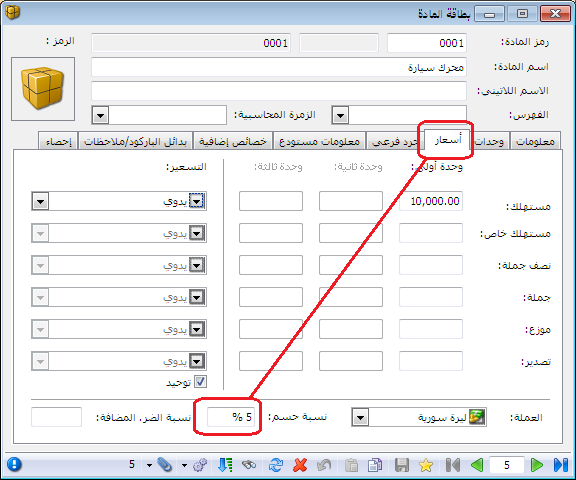
Customer Samir has a 3% discount.

.
When selling a Car Engine to Samir,
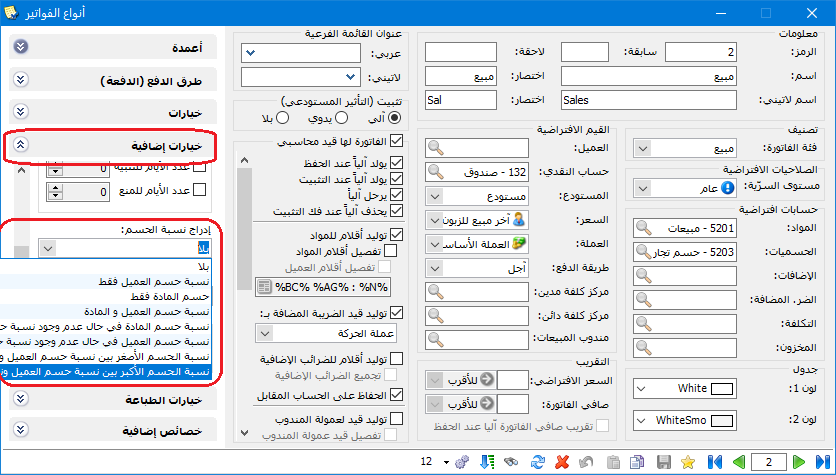
choose the discount insertion policy under Additional Options. Available policies include:
None: Apply no discount, ignoring both item and customer defaults.
Example: A Car Engine sold to Samir for SYP 10,000 retains that price, ignoring the item’s 5% and customer’s 3% discounts.
Customer Discount: Ignore the item discount and apply the customer discount.
Example: For the SYP 10,000 engine, apply Samir’s 3% and ignore the item’s 5%.
Item Discount : Ignore the customer discount and apply the item discount.
For the SYP 10,000 engine, apply the item’s 5% and ignore Samir’s 3%.
Customer and Item Discounts: Apply both discounts.
For the SYP 10,000 engine, apply both Samir’s 3% and the item’s 5% according to the program’s calculation policy.
Item Discount If No Customer Discount: Prioritize the customer discount; use the item discount only if no customer discount exists.
With both discounts defined, use Samir’s customer discount. If he has no customer discount, use the engine’s 5% item discount.
Customer Discount If No Item Discount: Prioritize the item discount; use the customer discount only if no item discount exists.
With both defined, use the engine’s item discount. If it has none, use Samir’s 3% customer discount.
Lower of Customer and Item Discount Rates: Compare both rates and use the lower.
Higher of Customer and Item Discount Rates: Compare both rates and use the higher.
As illustrated below:
.
.
Additional Tax System: Select the configured tax system to calculate applicable taxes automatically. Tax modules are explained separately.
Include in Tax Register: Enable if using a supported tax module. Once an invoice is registered, editing or deleting it may be restricted. Review the module’s workflow before using this setting.
Insert Automatically on Save: Add the invoice to the tax register when saving.
Ask Before Automatic Insertion: Prompt before tax registration so the user can insert immediately or defer.
Show Dialog When Inserting: Display tax registration information before adding the invoice.
Prevent Printing Before Insertion: Do not allow invoice printing before tax registration.
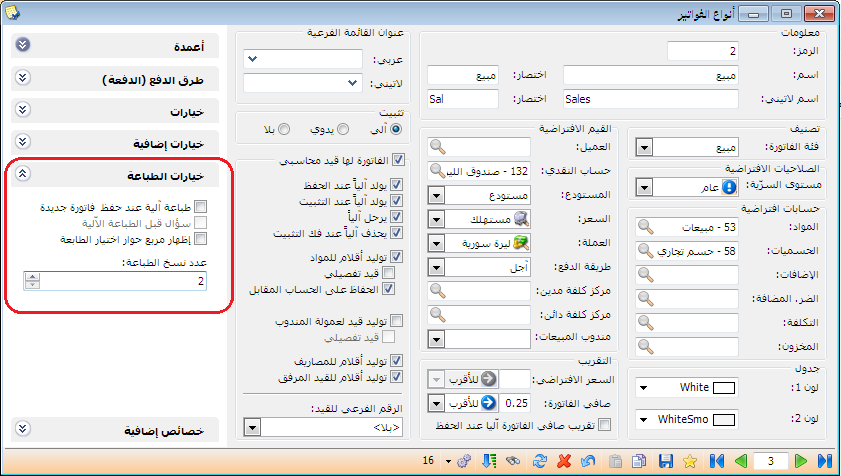
Print Options: #
- Print Automatically When Saving a New Invoice: Print the invoice when saving without choosing Print or Custom Print manually.
Important Note 1:
Automatic printing uses the method remembered from the latest manual print for that type. For example, if a Sales Invoice was last printed using Custom Print, subsequent automatic prints use that method.
Important Note 2:
Ctrl+P follows the same remembered standard or custom printing method.
- Ask Before Automatic Printing: After saving, ask whether to print, with Yes and No options.
- Show the Printer Selection Dialog: With this option enabled, display the printer selection dialog before automatic printing.
Important Note:
The printer dialog also allows cancelling a print when not every invoice should be printed.
- Number of Print Copies: Set the number of copies to print.
The Print Options section is illustrated below.
.
.
Additional Properties: #
Invoice additional properties work like item properties but apply to the whole invoice. They provide optional data for printing, such as delivery time, location, sender and recipient. Define these fields flexibly and assign defaults for automatic insertion when needed.
Important Note on Invoice Types:
Invoice type settings determine accounting entries, posting and inventory effects. Change defaults only after understanding the resulting behavior.
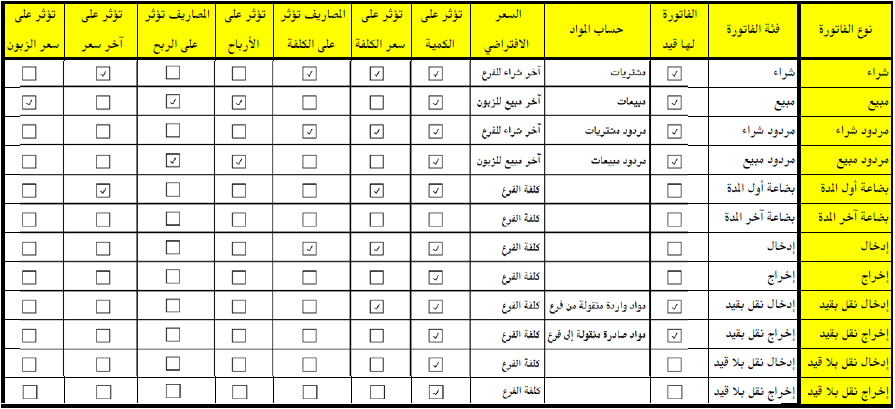
The following table summarizes default settings for common invoice types in a SimpleAccTree database. Compare your configuration with it when diagnosing entry-generation or inventory-posting issues.
.