


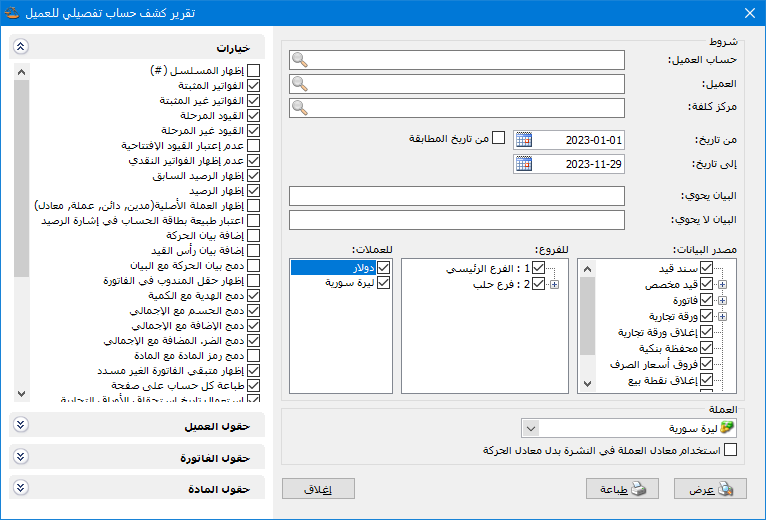
This report provides detailed transactions for customers and suppliers. Unlike the General Ledger, which shows invoice totals, it can display the invoice item lines affecting the customer or supplier account. The criteria window also provides the following options:
.
Conditions: #
- Customer AccountSelect the customer or supplier account to report. You can enter a
- subaccount such as Tareq or a parent account such as Customers, as described in the General Ledger guide.
- Customer: Instead of selecting the account directly, choose the customer name from its customer record. The list includes names for accounts with customer records.
- Cost Center: Select a cost center to include customer account transactions allocated to it.
- From Date / To Date: Specify the report date range.
- From Reconciliation Date: Enable this option to display a detailed statement beginning on the day after the reconciliation date recorded in the account record.
- Description Contains, Description Does Not ContainThese filters apply to invoice and journal entry descriptions, as described in the General Ledger guide.
Data Sources: #
Select the transaction sources to include. For example, selecting only Invoices displays the account’s invoices without journal entries, commercial papers or other sources.
Branches: #
Select the branches to include, such as Tareq’s transactions in the Aleppo branch.
Transaction Currencies: #
Select the currencies to include, such as Tareq’s transactions recorded in Syrian pounds.
Currency: #
Select the currency in which the report should be displayed.
Exchange Rate: Specify the exchange rate relative to the base currency. This is available only for a secondary currency and offers two choices.
- Use the Exchange-Rate Schedule: Retrieve exchange rates automatically from the schedule, using the rate applicable on each transaction date.
- Use a Specified Exchange Rate: Enter a rate in the field that appears and use it to display the report.
- Use the Scheduled Currency Rate Instead of the Transaction Rate: Use the rate from the exchange-rate schedule instead of the original transaction rate. This option is used when requesting the report in the base currency.
Customer Fields: #
Customer record fields such as name, telephone and fax can be displayed in the report header, separately from the main transaction fields.
Invoice Fields: #
Select invoice line fields such as quantity and unit price, and invoice header fields such as number, subnumber and date.
Item Fields: #
Select fields from the item record, such as item name, category and accounting group.
Options: #
The options include:
- Show Sequence Number: Enable this option to display sequential transaction numbers.
- Finalized Invoices, Unfinalized Invoices: Enable the required options to choose which invoices appear in the statement.
- Posted Entries, Unposted Entries: Enable the required options to choose which journal entries appear in the statement.
- Ignore Opening Entries: Enable this option to exclude opening entries. For example, an opening entry balance for the customer will be omitted from the report.
- Hide Cash InvoicesMost customer account transactions involve credit invoices. A cash invoice may identify the customer while its accounting entry uses Cash rather than the customer account. Such invoices can still appear in the customer statement without changing the customer’s balance. Enable this option to hide them.
- Show Previous Balance: Enable this option to bring forward the balance of transactions preceding the report’s start date when reporting from a date after the accounting period began.
- Show Balance: Enable this option to display a running Balance column after every invoice, journal entry or other transaction.
Currency Options: #
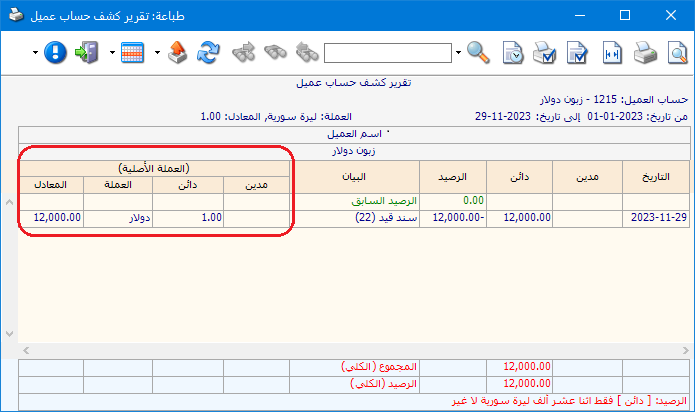
- Show Original Currency (Debit, Credit, Currency, Exchange Rate): This option displays four columns showing each transaction’s debit amount, credit amount, currency and exchange rate as originally recorded.
.
- Use Account Nature for the Balance Sign: By default, debit balances are positive and credit balances are negative. Enable this option to display balance signs relative to the nature defined in the account record.
Note: Account Nature has three options: Debit, Credit or Both. If the user selects Both, its balance sign is treated in the same way as Debit.
Description Options: #
- Append Transaction Description: Enable this option to add a column showing the invoice, journal entry or other transaction description.
- Append Entry Header Description: Enable this option to add the journal entry header description to the Transaction Description column.
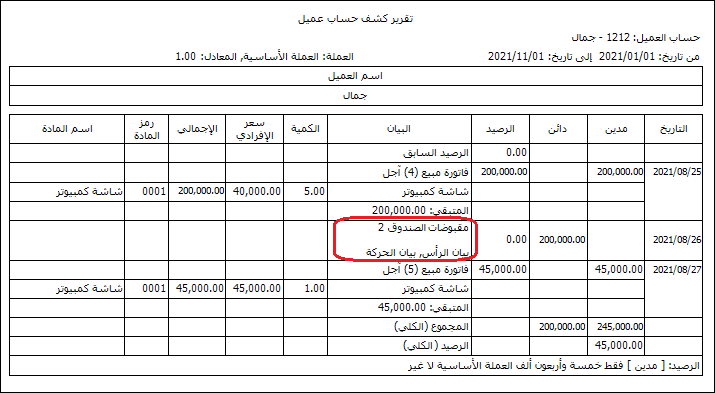
- Merge Transaction Description with Description: This option combines transaction and entry header descriptions with the main Description field in one column. It saves printing space while preserving the information, as shown below:
.
- Show Invoice Sales Representative: Enable this option to display the representative associated with the invoice.
Merge Options: #
- Combine Gifts with Quantity: Enable this option to combine the main quantity and free units in the Quantity column.
- Merge Discount with Total: Assume Mahmoud buys fabric for 30,000 lira and receives a discount of 3,000. Without this option, the discount appears separately in Credit because it reduces the customer’s debit balance, as shown below:
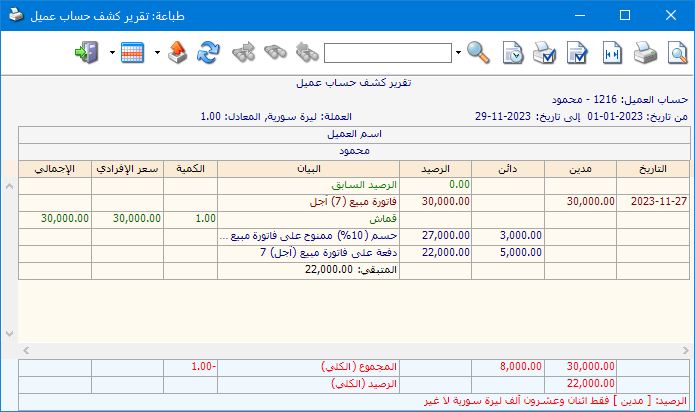
.
With this option enabled, the discount is deducted from the invoice total, as shown below:
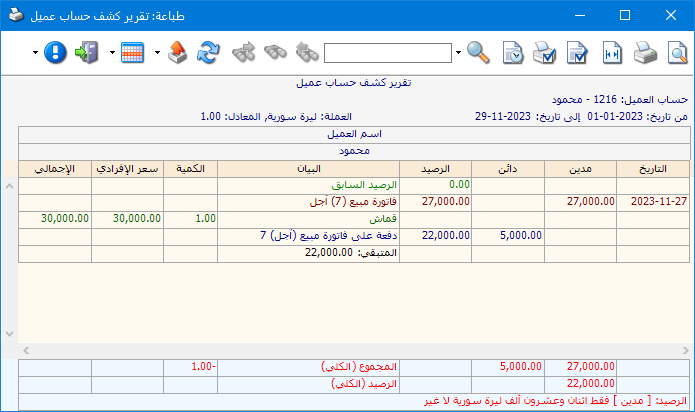
.
- Merge Addition with Total: Assume Mahmoud buys fabric for 29,950 lira and the invoice is rounded up to 30,000. Without this option, the 50-lira addition appears separately in Debit because it increases the customer’s debit balance. With this option enabled, the addition is included in the invoice total.
- Merge VAT with Total: The same display principle applies to VAT.
- Combine Item Code and Name: When Item Code and Item Name are both selected, enable this option to combine them in one field, as shown below:
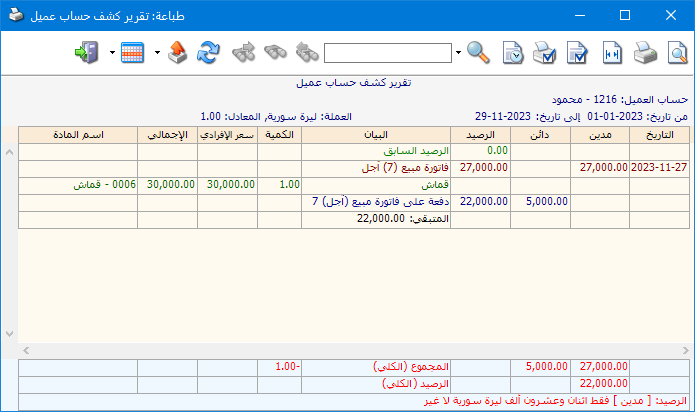
.
Show Unpaid Invoice Amount: For a credit invoice, the customer may pay part of the amount through the invoice’s Payment field. Enable this option to display the remaining unpaid amount.
Print Each Account on a Separate Page: When reporting on a parent account such as Customers, all customer accounts appear in one report. Enable this option to print each account on a separate page rather than sharing pages.
Commercial Paper Options: #
Use Commercial Paper Due DateEnable this option to display commercial papers by due date rather than issue date. If disabled, their issue date is used.
Show Commercial Paper Due Date: Enable this option to display the paper’s due date.
Hide Collected Papers: Enable this option when collected customer papers should be omitted.
Display Options: #
Show Accounts with No TransactionsEnable this option when reporting on a parent account to include accounts that have never had transactions.
Show Zero-Balance Accounts: Enable this option when reporting on a parent account to include accounts that have had transactions but now have a zero balance.
Show Branch: Enable this option to display the branch associated with each transaction.
Use Item Print NameEnable this option to use the item’s print name in the Description field instead of its standard name.
Hide Customer Account Code: Enable this option to hide the account code from the statement header.
Hide Invoice Payment MethodEnable this option to omit the payment method from the Description field.
Show Monthly TotalsEnable this option to add a month-end row showing each month’s total debits, credits and balance.
Show Since Last Zero Balance: Enable this option to display transactions after the customer account’s most recent zero balance.
Merge Additional Taxes with Total: Assume Mahmoud buys fabric for 30,000 lira with additional taxes of 3,000. Without this option, the taxes appear separately in Debit because they increase the customer’s balance. With this option enabled, they are included in the invoice total.
Report Footer: #
Show: Display the report using the preceding conditions.
Print: Click this button to print the final report.
Close: Close the report conditions window.
Practical examples of information available from the Customer Statement report:
- A detailed customer or supplier statement through the current balance.
- Sales invoices issued to a particular customer.
- Purchase invoices from a particular supplier.
- Print statements for all customers in one operation.
- Payments received from a particular customer.
- Payments made to a particular supplier.
- A statement from the start of April with the balance from the first three months brought forward.
- A customer statement for transactions with a particular company branch.
- A statement in the base currency or another currency defined in the database.
- A customer statement from the most recent reconciliation date recorded in the account.
- A detailed statement of transactions allocated to a specified cost center.
.


