


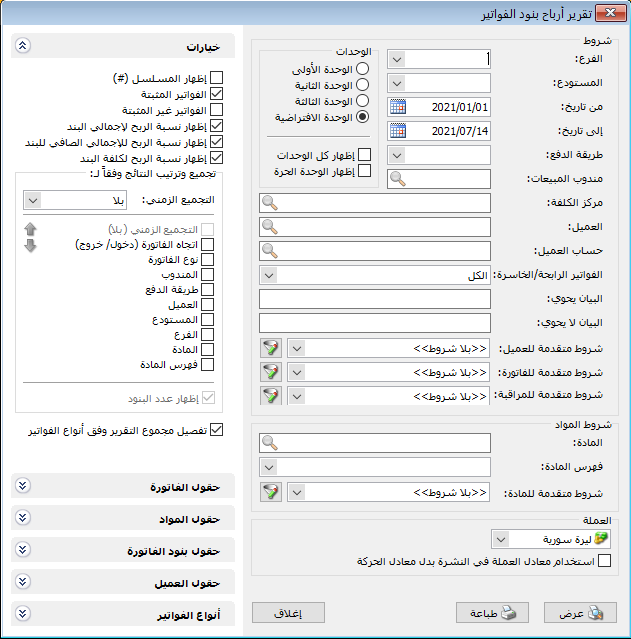
This report displays gross and net profits from individual invoice lines. Choose Reports > Invoice Line Profits to open the conditions window with these fields:
.
Conditions: #
- Branch: Select the branch whose invoice lines should be displayed.
- Warehouse: Select the warehouse whose invoice lines should be displayed.
- From Date / To Date: Specify the report date range.
- Payment Method: Select a payment method to display invoice lines using it.
- Sales Representative: Select a representative to display the invoice lines sold by that representative and their profits.
- Cost Center: Select a cost center to display invoice lines recorded for it.
- Customer Account: Select a customer account to display invoice lines carrying it in Customer Account.
- Customer: Select a customer to display invoice lines carrying that customer account.
- Units: Choose the item unit to display, such as Piece as the first unit or Dozen as the second.
- Profitable / Loss-Making Invoices: Choices include All, Profitable Only, Loss-Making Only and Break-Even.
- Description Contains / Does Not Contain: Enter text to include or exclude invoice lines according to the invoice description.
Advanced Conditions: #
- Advanced Invoice Conditions: Specify advanced conditions, explained in the Detailed Invoice Transactions guide. Two condition groups are available:
- Line conditions, such as size or color.
- Invoice conditions, such as invoice type or currency.
- Advanced Customer Conditions: Advanced customer conditions use information from the customer record.
- Advanced Audit Conditions: Specify audit conditions, such as invoices added or modified by a particular user.
Item Conditions: #
- Item: Select the item to display.
- Item Category: Select the item category to display.
- Advanced Item Conditions: Advanced item conditions use information from the item record. For example, to filter by origin, open Item Conditions, select Origin, choose Equals and enter the required origin. Save the condition to place it in Advanced Item Conditions.
- Currency and Exchange Rate: Select the report currency and its exchange rate relative to the base currency.
Options: #
The options section contains:
- Show Sequence Number: Display sequential report row numbers.
- Finalized Invoices: Include finalized invoices.
- Unfinalized Invoices: Include unfinalized invoices.
- Show Profit as a Percentage of Line Total: Display line net profit divided by the line total.
- Show Profit as a Percentage of Line Net Total: Display line net profit divided by the line net total.
- Show Profit as a Percentage of Line Cost: Display line net profit divided by line cost.
Group Results By: #
Group results using one of the following choices:
Time Grouping: None, Daily, Weekly, Monthly or Quarterly.
Invoice Direction: Incoming / Outgoing
- Invoice Type
- Representative
- Payment Method
- Customer
- Warehouse
- Branch
- Item
- Item Category
Show Line Count: #
Add a field showing the number of lines in each group.
Break down report totals by invoice type. #
- Invoice Fields: Fields describing invoice information, such as invoice date and the warehouse from which items were issued.
- Item Fields: Fields from the item record, such as barcode or volume.
- Invoice Line Fields: Fields from invoice lines, such as discount and its percentage, surcharge and its percentage, total, net total and quantity.
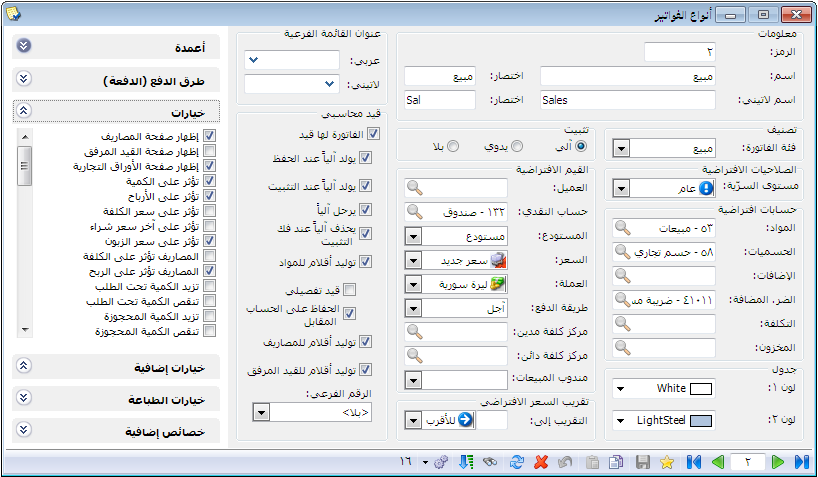
Invoice Types: #
Only invoice types that affect profits appear in the type selection. More than one type may affect profits.
.
- Show: Display the report using the preceding conditions.
- Print: Click this button to print the final report.
- Close: Close the report conditions window.
Examples of Information Available from the Invoice Line Profit Report:
- Profits for invoice items showing each line total, net total, item cost, gross profit, net profit and other selected fields.
- Profits for invoice items sold by representative Imad.
- Profits for items sold to customer Hossam.
- Profits for items sold for cash.
- Invoice line profits with percentages relative to total, net total and cost.
- Profits for items sold for cash during the first month whose Mr./Recipient field contains Ahmad.
.


