


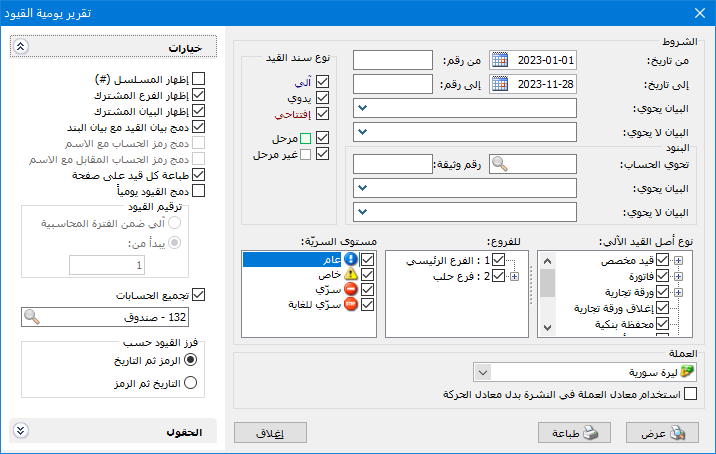
Display all or part of the database journal vouchers. Choose Reports > Journal Daybook to open the conditions window containing these fields:
.
Conditions: #
- From Date / To Date: Specify the date range for entries to display.
- From Number / To Number: Specify the number range for entries to display.
- Description Contains / Does Not Contain: Enter text to include or exclude entries according to their descriptions.
Lines: #
- Contains Account: Select an account to include entries containing it on either side.
- Document Number: Enter a document number to display vouchers carrying it.
- Description Contains / Does Not Contain: Enter text to include or exclude entries according to their line descriptions.
Journal Voucher Type: #
The available choices are:
- Automatic: Display entries generated by operations such as invoices, custom entries or commercial papers.
- Manual: Display entries entered manually through Journal Voucher on the main toolbar.
- Opening: Display opening entries with Opening enabled in Status.
- Posted: Display entries posted to accounts.
- Unposted: Display entries not posted to accounts.
Branches: #
Select one or more branches to include their entries.
Confidentiality Level: #
Select the confidentiality level of entries to display.
Automatic Entry Source Type: #
Select the operations whose automatically generated entries should be displayed.
- Currency: Select the currency in which the report should be displayed.
- Exchange Rate: Specify the rate relative to the base currency. This field is available only for a secondary currency and offers two choices:
- Use the Exchange-Rate Schedule: Retrieve exchange rates automatically from the schedule, using the rate applicable on each transaction date.
- Use a Specified Exchange Rate: Enter a rate in the field that appears and use it to display the report.
- Use the Scheduled Currency Rate Instead of the Transaction Rate: Use the rate from the exchange-rate schedule instead of the rate entered in the original transaction. This option is used when requesting the report in the base currency.
Fields: #
Choose fields related to journal entries and arrange their order using the two arrows above the fields list.
Options: #
The options include:
- Show Sequence Number: Display sequential numbers for report entry rows.
- Show Shared Branch: Display the branch above each entry.
- Show Shared Description: Show or hide the entry shared description above it.
- Combine Entry and Line Descriptions: Display both descriptions in one Description field. When disabled, only the line description appears.
- Combine Account Code and Name: Enable Account Code in Fields, then use this option to display the code and name together.
- Combine Counterpart Account Code and Name: Enable Counterpart Account Code in Fields, then display the counterpart code and name together.
- Print Each Entry on a Separate Page: Print each reported entry on its own page.
- Combine Entries Daily: Combine all entries on the same day into one reported entry.
Entry Numbering: #
This numbers entries in the report only and does not change their original numbers. Two choices are available:
- Automatic within Accounting Period: Number reported entries from 1 within the accounting period.
- Start From: Number reported entries starting from the value entered.
- Group Accounts: Combine repeated account lines within each entry. For example, repeated Cash account lines appear once with their combined amounts in each entry.
Sort Entries By: #
- Code, Then Date
- Date, Then Code
Note:
To print selected entries from the daybook, choose Multiple Custom Printing and specify the starting and ending entry numbers.
- Show: Display the report using the preceding conditions.
- Print: Click this button to print the final report.
- Close: Close the report conditions window.
Examples of Information Available from the Journal Daybook:
- All accounting entries stored in the database.
- Accounting entries recorded during the first three months or another specified period.
- Posted entries, unposted entries or both.
- Entries containing the Cash account.
- Entries numbered 1 through 150.
- Entries combined by day with configurable numbering for the resulting reported entries.
- Entries with repeated accounts combined within each entry.
- Automatic, manual or opening entries.
.


