


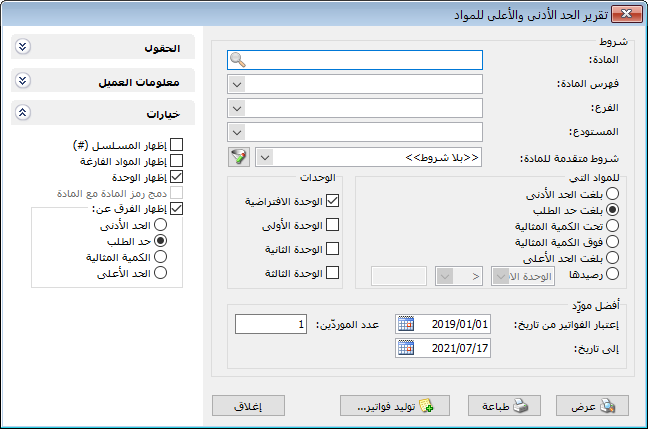
This report compares warehouse stock against levels defined in the item record, including minimum, maximum and ideal quantities. It also provides supplier and purchase price information. Choose Minimum and Maximum Item Levels from the Reports menu to open the following criteria window:
.
Conditions: #
- Item: Select a specific item to display.
- Item Category: Select a parent item category to include only its items.
- Branch: Select a branch to include stock in its warehouses and transactions within that branch.
- Warehouse: Select a warehouse to report stock at that warehouse.
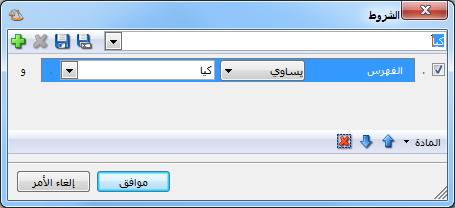
- Advanced Item Conditions: Use item record fields to filter the items included. For example, to include items in the Kia parent category, set an advanced filter where Category equals Kia, as shown below:
.
For Items That: #
The following options are available:
- At Minimum Level: Include items whose actual stock is less than or equal to their minimum level.
- At Reorder Level: Include items whose actual stock is less than or equal to their reorder level.
- Below Ideal Quantity: Include items whose actual stock is below their ideal quantity.
- Above Ideal Quantity: Include items whose actual stock is above their ideal quantity.
- At Maximum Level: Include items whose actual stock is greater than or equal to their maximum level.
- Balance: Enable this option to define a custom stock quantity condition. Select the unit, then choose a comparison operator:
< means Less Than.
<= means Less Than or Equal To.
> means Greater Than.
>= means Greater Than or Equal To.
= means Equal To.
<> means Between two specified values.
Then enter the required comparison quantity.
Units: #
The following unit options are available:
- Default Unit.
- First Unit.
- Second Unit.
- Third Unit.
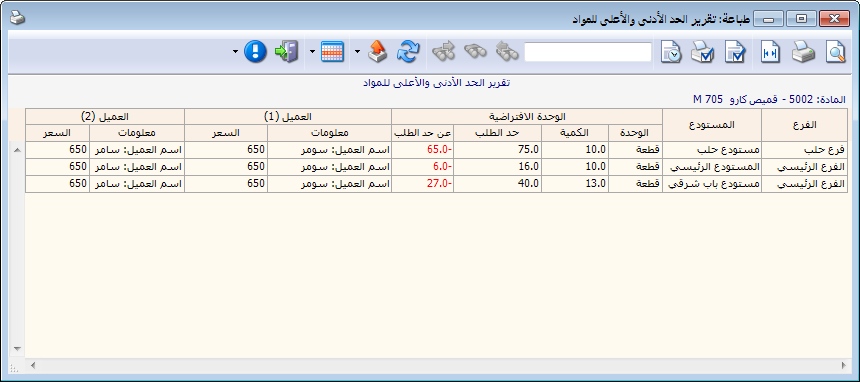
Enable the required unit options to display quantities in each selected unit separately, as shown below:
.
Best Supplier: The report identifies the supplier offering the lowest recorded purchase price for each item. If there are no purchase transactions, it displays the Main Supplier selected on the Information tab of the item record. Enable Customer Information to display supplier details.
The following fields are available:
- Consider Invoices from Date to DateSet the date range within which purchase invoices are searched for the lowest purchase prices and their suppliers.
- Number of SuppliersSet how many suppliers to display. Entering 2, for example, displays the two best recorded purchase prices and their suppliers.
Fields: #
Enable the required report fields in the Fields section. Most come from the item record.
Customer Information: #
Enable the required supplier information fields, which come from the customer/supplier record. Two options are available:
- Show Customer Information: Enable this option to display the best supplier for the item. If disabled, best supplier information is hidden.
- Show Price: Enable this option to display the purchase price for the supplier shown. Customer Information must also be enabled; a price cannot be shown without its supplier.
Options: #
The available options include:
- Show Sequence Number: Enable this option to display sequential row numbers.
- Show Items with No Stock: These are items with zero warehouse balances or no recorded transactions.
- Show Unit: Enable this option to display the unit next to the quantity.
- Combine Item Code and Name: Combine item code and name in one report field.
- Show Difference From: Enable this option to display the difference between actual warehouse stock and one of the following levels:
- Minimum Level.
- Reorder Level.
- Ideal Quantity.
- Maximum Level.
Show: #
Display the report using the preceding conditions.
Print: #
Click this button to print the final report.
Generate Invoices: #
Use this button to generate a purchase invoice or purchase order, for example to replenish shortages. The generated quantity is the difference between actual stock and the level selected in Show Difference From. If actual stock is 5 units and the reorder level is 25, the shortage is 20 units; Generate Invoices creates a purchase invoice for those 20 units.
Click Generate Invoices to choose the customer/supplier account, invoice type, line order, maximum lines per generated invoice, pricing method, currency and exchange rate, as shown below:
Close:
Close the report conditions window.

.
Practical examples of information available from the Minimum and Maximum Item Levels report:
- Items that have reached their reorder level.
- Items in the Clothing category that have reached their minimum level.
- Items in the Main Warehouse that have reached their reorder level.
- Items above their ideal quantity whose Origin field is Chinese.
- Items with balances between 35 and 150 units in the first unit.
- Clothing items at their reorder level, showing the difference between current stock and reorder quantity.
- Items at their reorder level, displaying the best supplier for each item according to purchase price.
- Items at their minimum level, with the option to generate purchase invoices or purchase orders.
.


